
Anatomy of a Profile

Many people ask “How do I actually build profiles? I understand regex, I get custom formats, but how do qualities fit in? Where do scores come from? How does it all connect?”
This is the wrong question to ask, or rather, it’s the right question asked backwards.
The goal isn’t to build profiles. Profiles are a means to an end. The goal is to express preference; to tell Radarr and Sonarr what you actually want. What makes one release better than another? What’s acceptable? What’s ideal? What should never be grabbed?
You already know the answers to these questions. You know you want HDR over SDR. You know YIFY is trash. You know a 20GB remux is better than a 2GB encode. You have opinions. Strong ones, probably.
The problem is getting those opinions out of your head and into a format the arrs understand. That’s what profiles are for. That’s what custom formats are for. That’s what regex is for. They’re not the point, they’re the vocabulary.
So let’s learn the vocabulary.
This guide assumes you’ve installed Radarr/Sonarr and understand basic concepts like releases, quality tiers, and release groups.
Regular Expressions
A release name is just text:
The.Lord.of.the.Rings.The.Return.of.the.King.2003.Extended.UHD.BluRay.2160p.TrueHD.Atmos.7.1.DV.HEVC.REMUX-FraMeSToREverything you need to know about a release is encoded in that string. Resolution. Source. HDR or not. Audio format. Release group. The arrs parse this automatically for the basics, but what if you want to match something specific? What if you want to identify all releases from a particular group, or reject anything with “CAM” in the name?
That’s what regex is for. Regular expressions are patterns that match text. Instead of asking “does this release name equal X,” you’re asking “does this release name contain something that looks like Y.”
Regex Examples
| You want to match… | Regex | Whats happening | Examples |
|---|---|---|---|
| YIFY releases | \bYIFY\b | Literal text with word boundaries | ✓ Movie.2024.1080p-YIFY → standalone word✗ Movie.YIFYrip.1080p → part of larger word |
| x264 or x265 codec | \bx26[45]\b | Character class matches 4 or 5 | ✓ Movie.2024.x264-GROUP✓ Movie.2024.x265-GROUP✗ Movie.2024.H264-GROUP → H264 ≠ x264 |
| 3D releases | (?<=\b[12]\d{3}\b).*\b3d\b | Lookbehind ensures 3D comes after a year | ✓ Avatar.2009.3D.1080p → 3D after year✗ Avatar.3D.2009.1080p → 3D before year |
Don’t worry if the syntax looks alien. You don’t need to master regex to build profiles, you just need to understand what they do: filter text. Once that clicks, you can search “how do I match X” or “how do I exclude Y” and find answers. There’s a 99% chance someone has already solved your exact problem.
Custom Formats
Regex matches text. But a single pattern only tells you one thing. “This release has REMUX in the name.” Okay, but what if you want to identify releases that are REMUX and have HDR and have Atmos? Or releases that are either DV or HDR10+?
Custom formats are just a name attached to a set of conditions. When a release matches those conditions, the format applies.
Condition Types
Each condition in a custom format has a type. The most useful ones include:
| Type | What it matches against |
|---|---|
| Release Title | The full release name (regex) |
| Release Group | The group who released it |
| Source | Where it came from (BluRay, WEB, etc.) |
| Resolution | 720p, 1080p, 2160p, etc. |
You can mix types freely. A single custom format might check the release title for a pattern, require a specific source, and restrict to certain release groups.
Format Examples
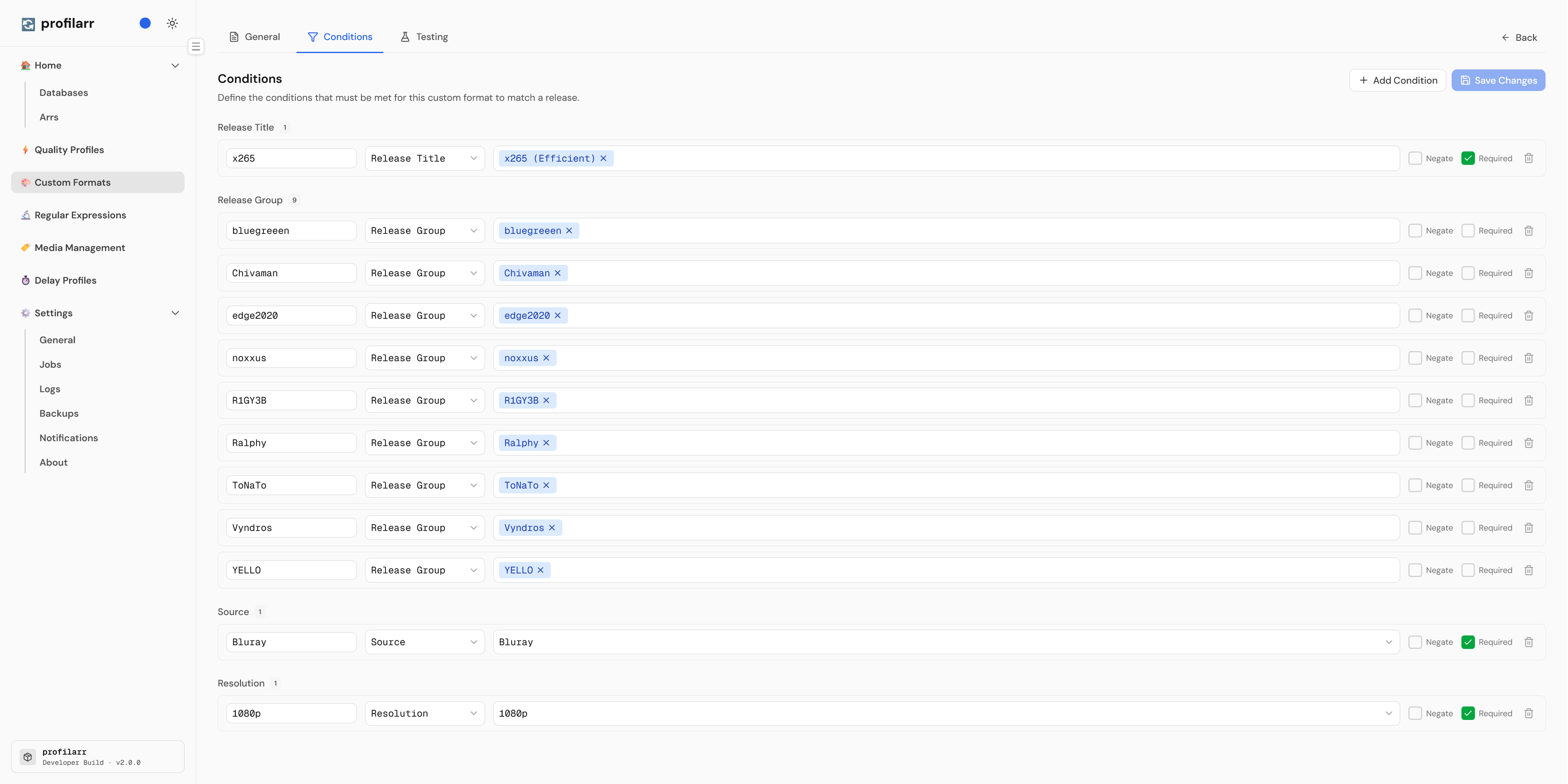
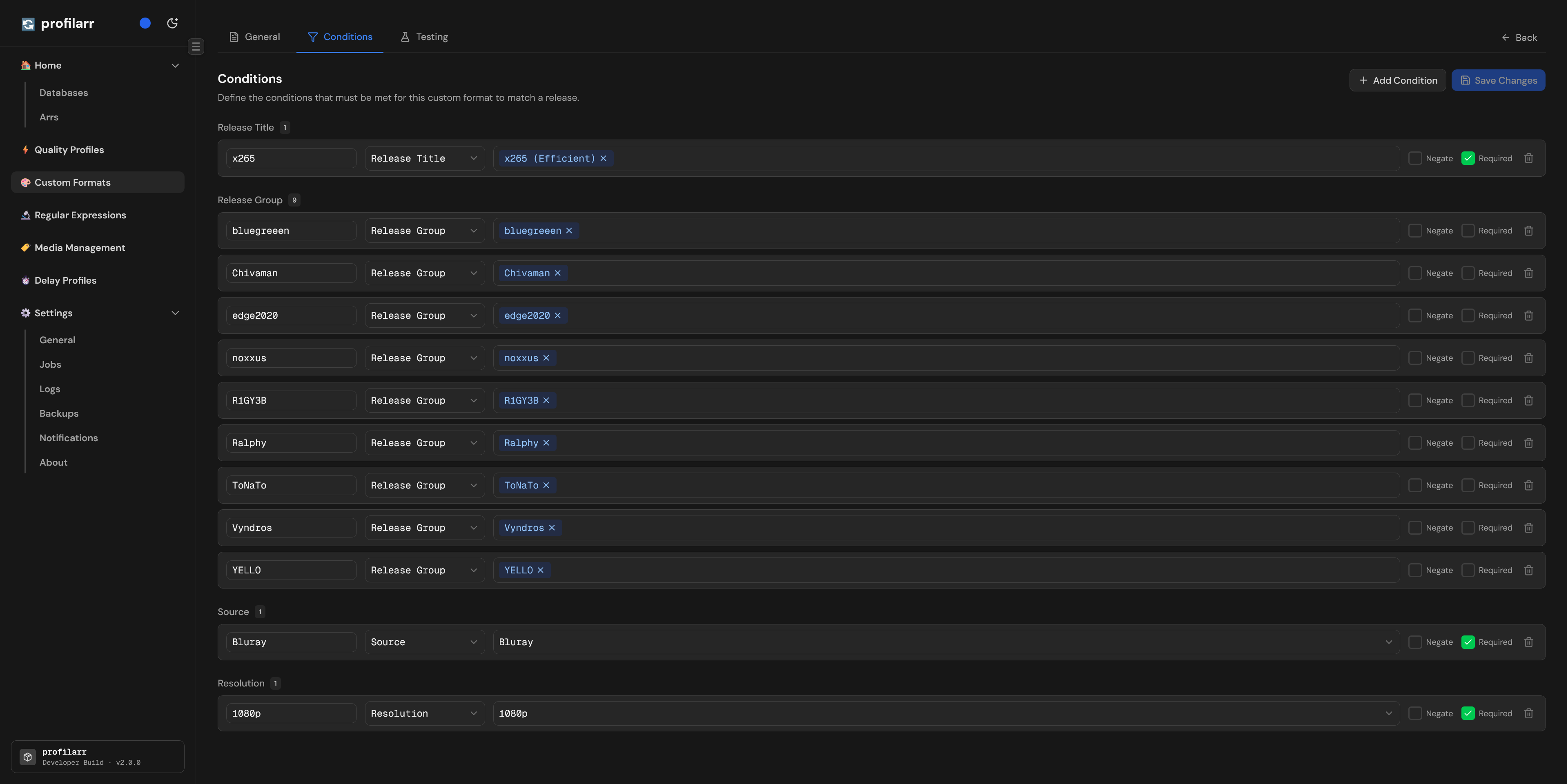
This format, “1080p Compact Movie Bluray Tier 1”, combines four condition types: a release title pattern, a list of trusted release groups, a source, and a resolution. Let’s test it against a release:
Shang-Chi.and.the.Legend.of.the.Ten.Rings.2021.1080p.BluRay.10Bit.X265.DD.5.1-Chivaman.mkv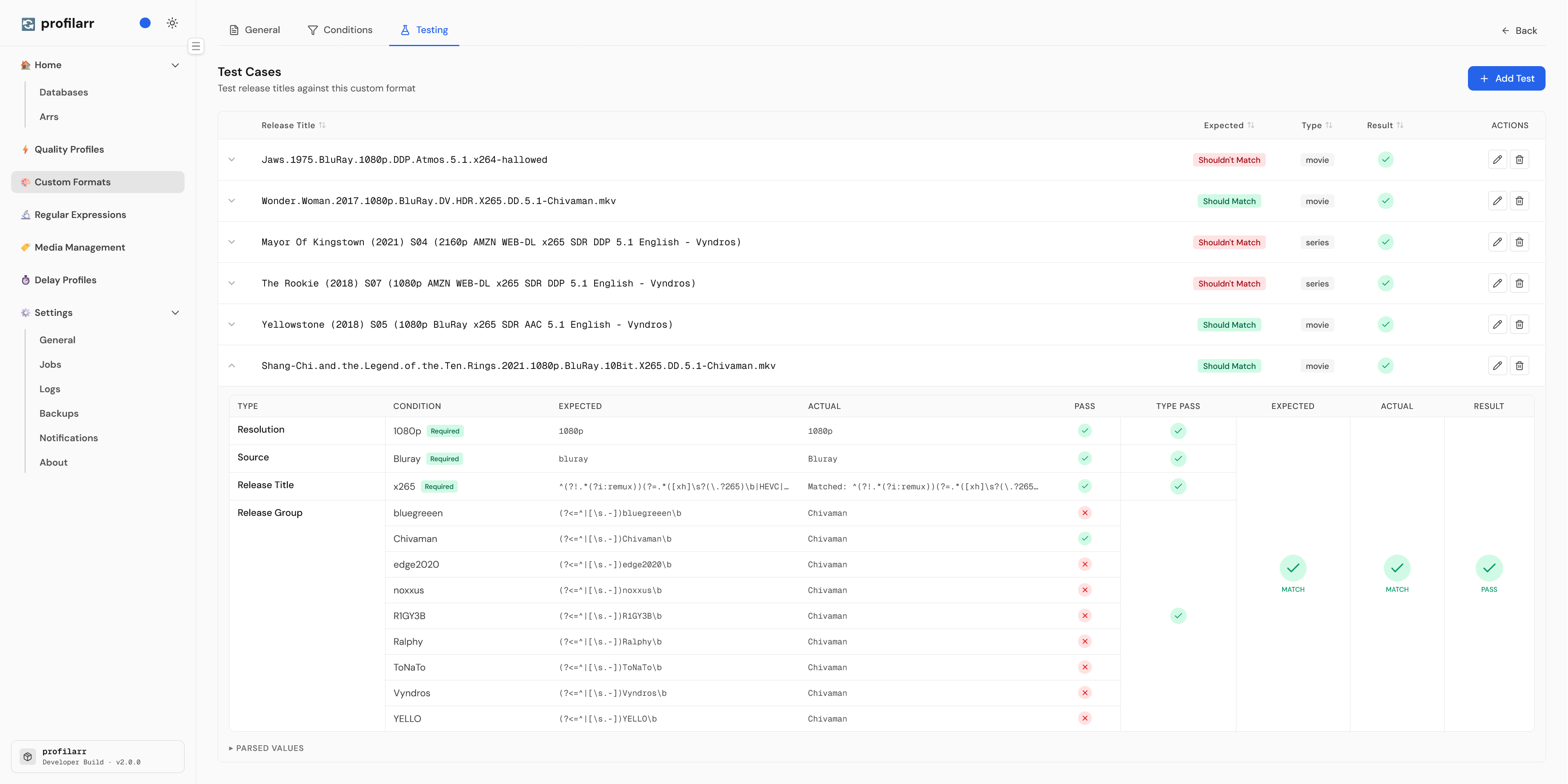
Notice how matching works:
- Between types → AND: every type must pass
- Within a type → OR: any condition can satisfy it
So this release needs to match the title regex, come from a BluRay source, be 1080p, and be from one of the listed groups. It passes all four, so the format applies.
Modifiers
Two modifiers change this default behavior:
- Required: forces a condition to match, turning that type’s logic from OR to AND
- Negate: inverts a condition, matching when the pattern is absent
If any condition in a type is marked required, then all required conditions must match. Optional conditions in that type become useless since the required ones already dictate the outcome. Either mark everything in a type required, or nothing.
So now you can identify releases. A format matches or it doesn’t. But identification isn’t preference. Knowing a release has HDR doesn’t tell you if HDR is better. Or how much better. That’s where quality profiles come in.
Quality Profiles
Quality profiles sort releases using two layers, and this order matters:
Qualities: coarse sorting. “Is this 1080p or 2160p?” A higher quality always beats a lower one, regardless of anything else.
Scoring: fine sorting. “Is this REMUX or WEB-DL? HDR or SDR? Trusted group or banned group?” Scores compete within a quality tier.
Qualities
Qualities are broad categories: 720p, 1080p, 2160p, and so on. The arrs identify these automatically, no regex is required.
In your profile, you enable the qualities you’ll accept and rank them. Higher position means higher priority.
The most important thing to understand is there’s no nuance within a tier. Every 1080p release is treated as equal to every other 1080p release. A 1080p YIFY encode and a 1080p transparent encode are the same quality. That’s obviously not what you want, but differentiating them isn’t the quality system’s job. That’s what scoring is for.
If you don’t want quality to be king, merge qualities into groups. Grouped qualities are treated as equivalent, letting custom format scores decide between them.
Traditionally, WEBRips were screen captures of streaming content, often at high resolutions using HDMI capture cards, then scaled down because lossless ripping tools didn’t exist yet. Today, that’s rarely the case. A WEBRip is simply an encode from a web source. You’ll often see 1080p WEBRips of new movies, and many assume these are low quality releases. They’re not. Release groups frequently encode from a 2160p web source because it’s a better starting point than a 1080p Blu-ray. Don’t dismiss WEBRips by name alone.
Scoring
Scoring is where custom formats come in. You assign point values to each format in your profile. When a release matches a format, it gets those points. Match multiple formats, and the scores add up. Highest total wins.
A release with HDR (+500) and Atmos (+200) and REMUX (+1000) scores 1700. A release with just HDR scores 500. Higher score wins.
This is how you express preference. You’re not writing rules like “always prefer REMUX over WEB-DL.” You’re saying “REMUX is worth 1000 points, WEB-DL is worth 100.” The math handles the rest.
Think about scoring holistically. A negative score doesn’t mean “never grab.” A positive score doesn’t mean “always grab.” And if X scores higher than Y, that doesn’t mean X is inherently better. What matters is the total score across all matched formats. A release with one -500 format and three +200 formats still ends up at +100. Scores are relative weights, not absolute judgments.
In addition to scoring custom formats, there are extra preferences to determine other behaviours:
| Setting | What it does |
|---|---|
| Minimum Score | Minimum score required to download. Useful for rejecting releases that match some desired formats but not enough and/or too many negative ones. |
| Upgrade Until Score | Stop upgrading once this score is reached. Useful to define when something is good enough and not worth upgrading anymore. |
| Upgrade Score Increment | Minimum improvement needed to upgrade. Prevents minor sidegrades when you’d rather wait for a meaningful jump. |
Profile Examples
Let’s revisit that initial Lord of the Rings release using the 2160p Remux profile. You can find all the scores on the profile’s docs page.
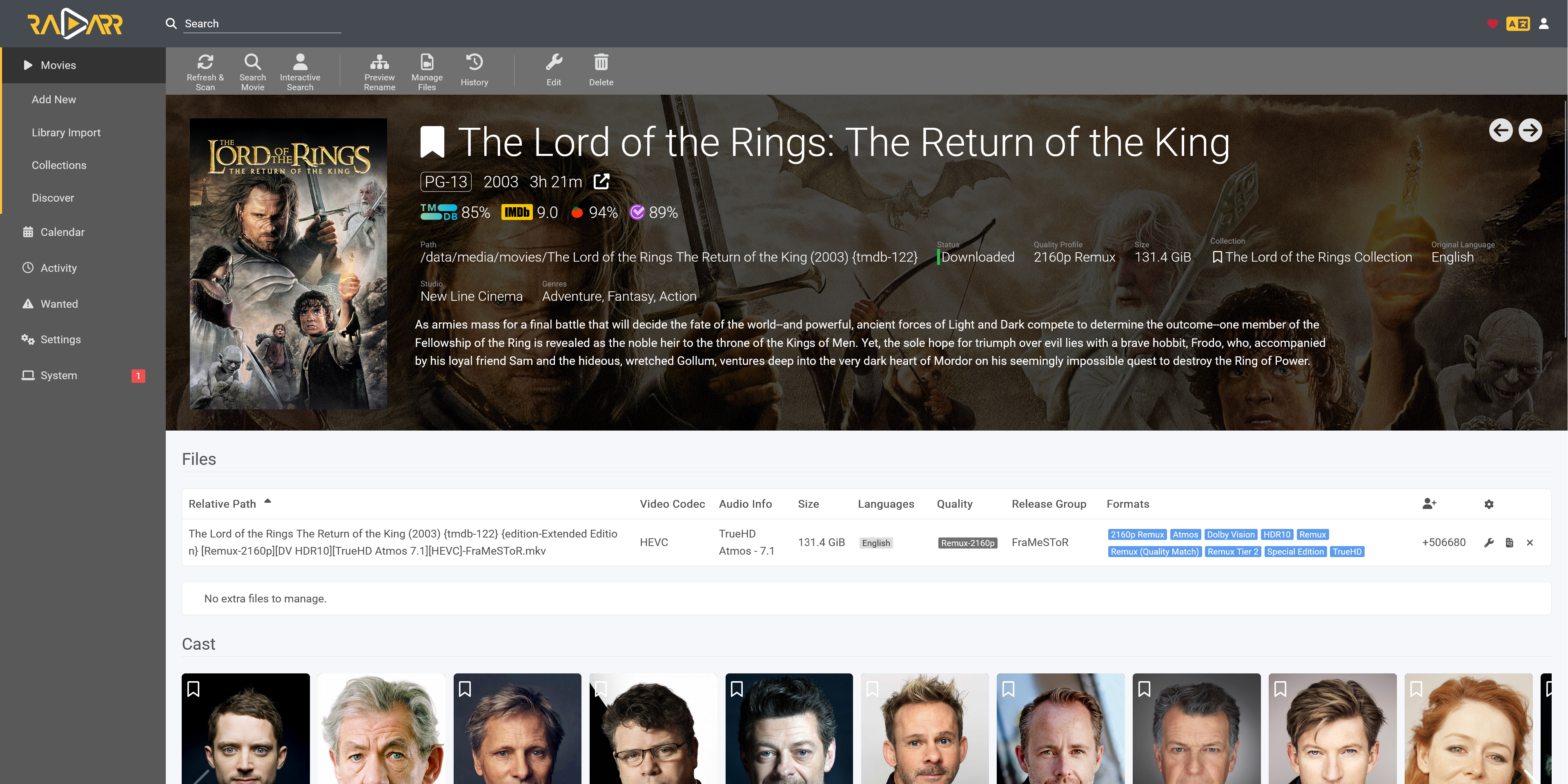
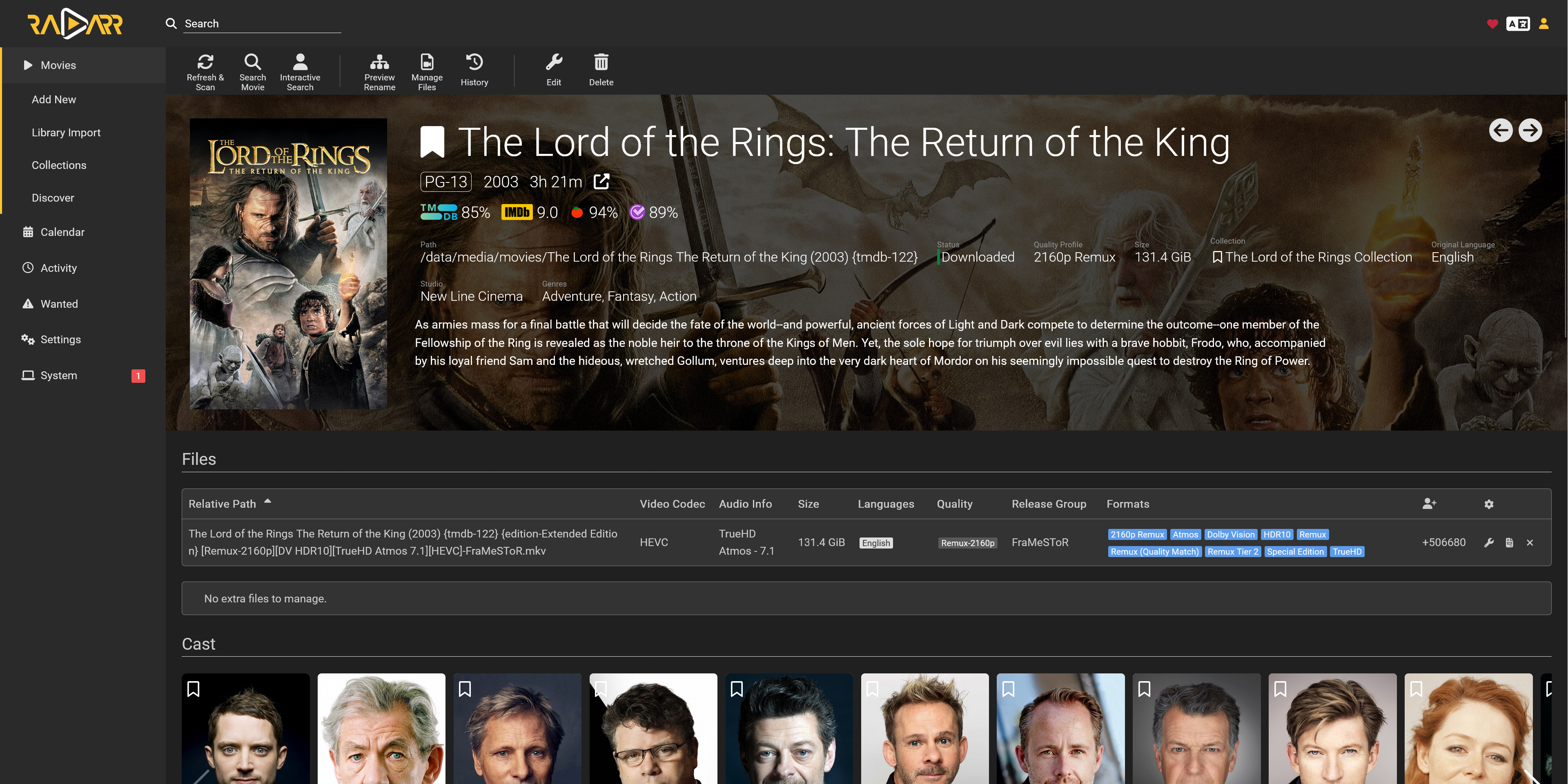
Notice how multiple formats match the same release. Each matched format contributes its score, and they all add up. This release matches REMUX, DV, TrueHD ATMOS, and several others. The total determines where it ranks.
Now imagine a search returns several releases for the same movie:
| Release | Quality | Matched Formats | Score |
|---|---|---|---|
LOTR.2003.Extended.2160p.REMUX.DV.TrueHD.Atmos-FraMeSToR | Remux-2160p | REMUX (+1500), DV (+500), Atmos (+400), Tier 1 Group (+500) | 2900 |
LOTR.2003.Extended.2160p.WEB-DL.DV.DD5.1-GROUP | WEBDL-2160p | WEB-DL (+100), DV (+500) | 600 |
LOTR.2003.2160p.BluRay.HDR.x265-YIFY | Bluray-2160p | HDR (+200), x265 (-100), YIFY (-10000) | -9900 |
LOTR.2003.1080p.WEB-DL.AAC-Unknown | WEBDL-1080p | WEB-DL (+100), Low Quality Audio (-200) | -100 |
With qualities ranked Remux-2160p > Bluray-2160p > WEBDL-2160p > WEBDL-1080p, the winner is the FraMeSToR remux. Highest quality, highest score.
But what if you ranked WEBDL-1080p above everything else? The 1080p release wins despite its negative score, because quality trumps scoring.
And if you grouped all four qualities together? Now they compete purely on score. The FraMeSToR remux still wins (2900 points), but for a different reason, not because it’s Remux-2160p, but because its custom formats outscore the others.
Summary
Three layers, each building on the last:
- Regex filters text
- Custom Formats bundle filters into identities
- Quality Profiles rank identities using qualities and scores
Your preferences flow through these layers. “I want HDR” becomes a regex, becomes a custom format, gets a score in a profile. If you’re not sure where to start, pick a profile from this site that matches your goals and study how it’s built. The best way to learn is to see the pieces in action.